
.png)

This tutorial will guide you step by step through the process of setting up and using TrueCrypt, an easy to use and open-source (free) program that allows you to store files in a secure and encrypted “volume” on your hard drive.

Launch TrueCrypt from your Start Menu, and click the Create Volume button.

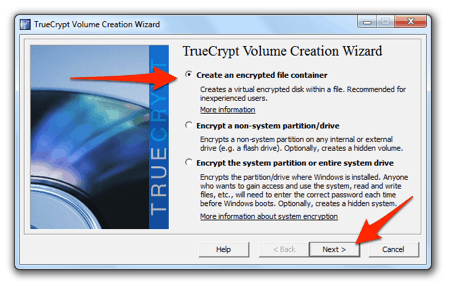
Make sure that Create an encrypted file container is selected, and click Next.
Leave Standard TrueCrypt Volume selected, and click Next.

Navigate to the location where you want to save your TrueCrypt file. I opted to save mine in my “My Documents” folder, but you can save it anywhere you prefer. This is the file that will act as the “storage” for all of the files you want to keep safe. Give your encrypted ‘storage file’ (volume) a name. Do not select an existing file, or it will be over-written. Click the Save button when you’re done.

Back at the Volume Location screen, click Next.

Review the info on the Encryption Options page – but leave the defaults selected unless you’re sure you want to make changes. Click Next.

Now decide how large you want this encrypted volume to be. If you’re only going to store text files, .doc/.xls or other Office files – you may want to keep this fairly small. I made mine 500MB, so that I could store quite a few files and folders. If you ever need to increase the size of your storage, you can always create another TrueCrypt file. The default Size is set in MB (megabytes). If you want to create a one or two (or fifty..) GB (gigabyte) file – so you can save a lot of files/folders in your secure volume, select GB instead of MB, and enter the number of gigabytes you want your TrueCrypt file/volume to be. Click Next when you’re ready to move on.
 Now enter a password in the spaces provided. The longer and more unique the password (ie. use special characters like @ # $ % * + etc) the better. Important: you will never be able to recover this password. While you should make it very, very strong – you should also remember it. Write it down on a piece of paper and hide the paper if you must, but don’t forget the password :) Again, click Next.
 In the Options section, decide which Filesystem you want your TrueCrypt volume to use. I opted for NTFS – though FAT is fine as well.


Now move your mouse around the Volume Format window. You’ll notice that as the cursor moves, the Random Pool characters change as well. The cursor movement helps to create a unique value that TrueCrypt will use. After a good 30 seconds of mouse shaking, click the Format button.

And now your encrypted volume will be created. Depending on how large you decided to make the file and how fast your PC is, this can take anywhere from a few seconds to a few minutes.

- When it’s done, click OK.

Now you can Exit out of the Wizard.

Back in the main TrueCrypt window, click the Select File… button.

Navigate to the file you created back in step 6, select it, and click Open.

Now pick a drive letter that you want this ‘volume’ to use. I opted for H:, since I never have an H: drive even when I plug in all of my external drives. It doesn’t really matter which drive letter you choose, just make sure it’s not one already in use. Click Mount.

- Enter your password and click OK.

Your encrypted volume will mount itself as the drive letter you selected.

Open “My Computer” and select your newly created drive.

Now you can copy (or more likely move) any kind of file to this volume, and they’ll be encrypted on the fly.
Very Important: as long as you leave your TrueCrypt drive open, the files and folders contained within it will be accessible to anyone who has access to your PC. It isn’t until the next step that the files and folders contained within your volume become 100% secure.

Back in TrueCrypt, unmount the drive by clicking the Dismount button.

Your H: (or whatever letter you selected) drive will disappear. The files stored on that volume are now only accessible by re-mounting the volume and entering your password.
To re-mount the volume, simply open TrueCrypt and repeat steps #15-18.
Remember, all those files and folders stored in your TrueCrypt volume are actually saved “inside” the file you created in Step #6. No one but you can access them.
Remember, all those files and folders stored in your TrueCrypt volume are actually saved “inside” the file you created in Step #6. No one but you can access them.




0 comments:
Post a Comment